Walk into a customer site
Plug in. NetBench shows the IP, subnet, gateway, DHCP and DNS on the adapter you just connected.
See the network you’re connected to. Find devices. Monitor hosts. Check DNS and ports. Trace problems — without bouncing between CMD, PowerShell and browser tools.
One Windows app for the checks network engineers run every day.
£29.99/year · 3 PCs · No card required
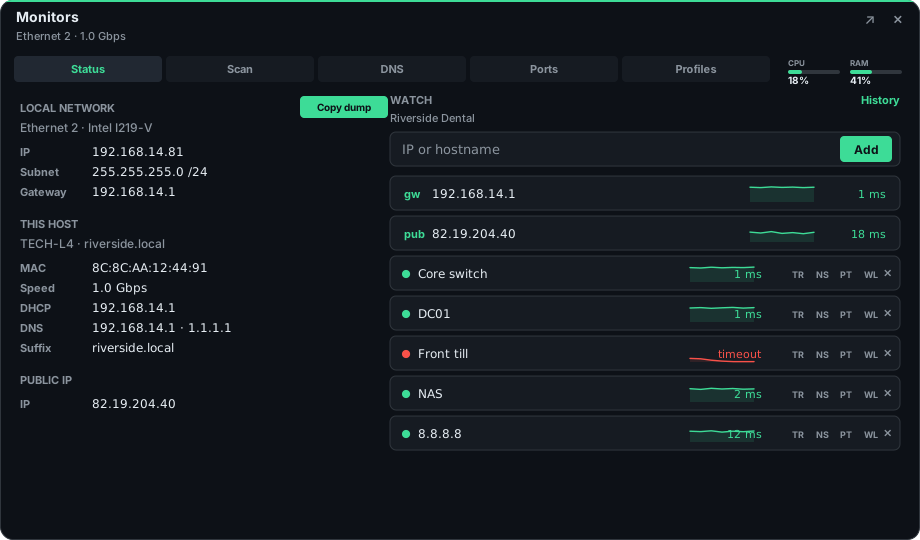
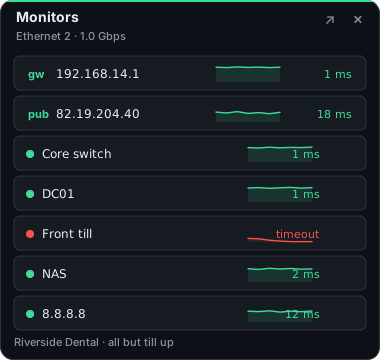
About twenty seconds. Read the adapter, scan the LAN, pin the hosts that matter, then run the next check on the same host.
NetBench reads the adapter you just joined.
IP, subnet, gateway, DHCP and DNS, on one screen.
IP, hostname, MAC and vendor for hosts that answer.
Gateway, server, till and the path off site, with live latency.
DNS, ports, certificates and traceroute, still in the same app.
NetBench is the toolkit on the engineer’s laptop. Open it when you plug in, work the fault, and close it when you are done. It is the tool you carry onto site, not the monitoring platform in the server room.
It does not replace PRTG, Zabbix or a full network management system. There is no packet capture and no Nmap-style sweep. SNMP here is a read-only look at the device in front of you — name, uptime and interfaces — not a collector for the estate.
The same situations, on site, without a different program for each check.
Plug in. NetBench shows the IP, subnet, gateway, DHCP and DNS on the adapter you just connected.
Put the gateway, server, till and internet connection into Watch. Their latency stays visible while you investigate.
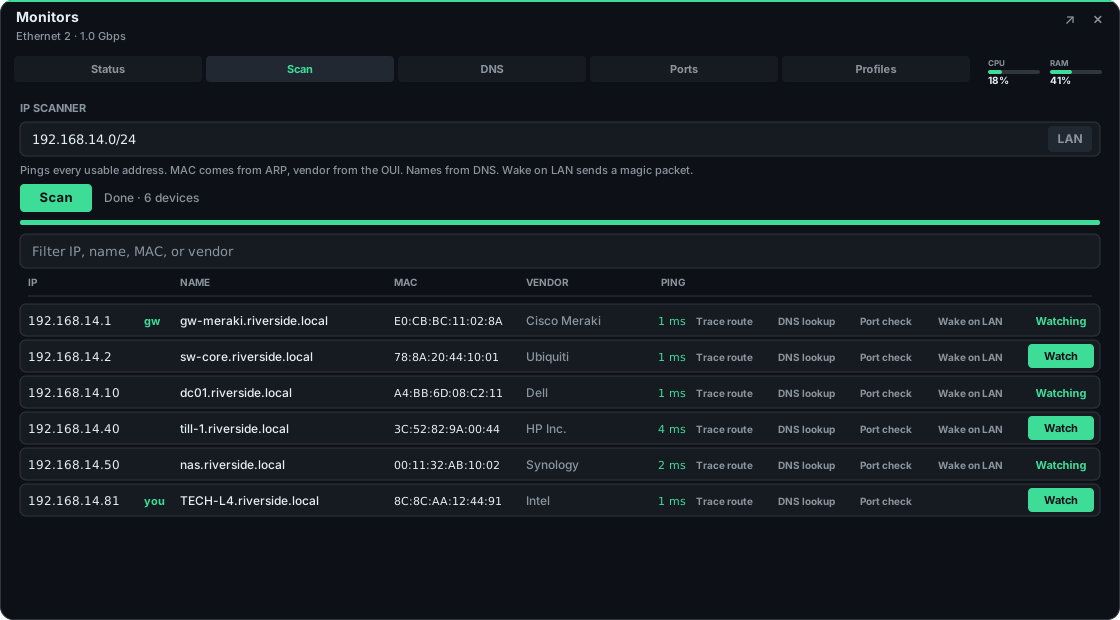
Scan the subnet and see IP, hostname, MAC and vendor in one table, with the gateway and this PC marked.
Run DNS, port checks and traceroute against the same host. Stay in NetBench instead of jumping between CMD, PowerShell and a browser.
Status, Watch, Scan, DNS, ports, certificates, a read-only SNMP poll and traceroute — each one on the host you are already investigating.
See the active NIC, IP, subnet, gateway, DHCP, DNS, MAC and link speed in one place. NetBench gives you the network context immediately, with Copy dump when you need to send the details on.
Pin the hosts that matter and watch them with continuous ICMP. Name each one as you add it — front till, NAS, core switch — so the list is readable on the next visit. See live RTT and recent latency, spot timeouts immediately, then jump straight to traceroute, DNS, ports, SSL, SNMP or Wake-on-LAN.
Sweep the NIC’s prefix or a subnet you type in, then resolve responding hosts with ARP, DNS and OUI data. See IP, hostname, MAC and vendor in one view, with the gateway and local PC tagged automatically. Filter the results or jump straight to Watch, SSL, SNMP, ports and Wake-on-LAN.
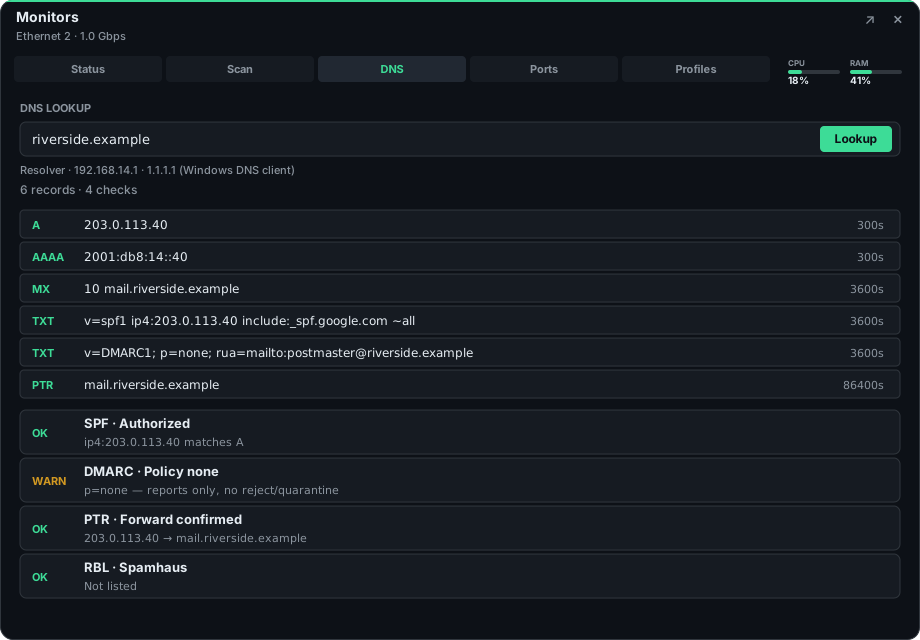
Use the Windows DNS client and the resolvers configured on the active NIC. See A, AAAA, CNAME, MX, TXT and PTR records, then check SPF, DMARC, forward-confirmed reverse DNS and RBL status in the same view. Each lookup stays in the workspace and stays collapsed until you open it.
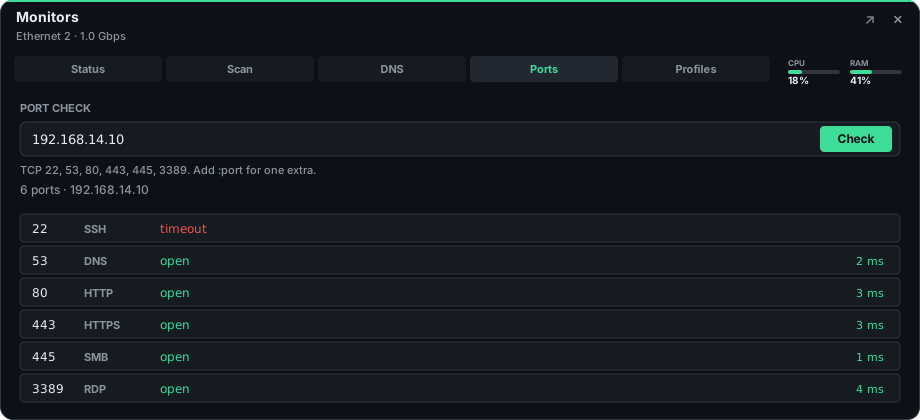
Check the common service ports — SSH, DNS, HTTP, HTTPS, SMB and RDP — plus any custom port you need. NetBench shows the connection result and RTT in one quick pass. Saved hosts stay in the workspace as a collapsed list until you expand one.
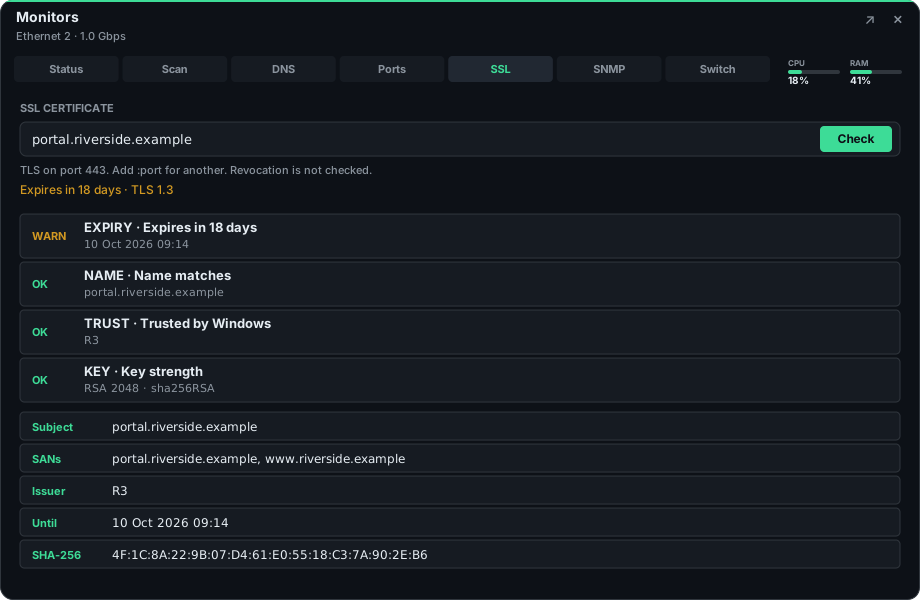
Open a TLS connection and read the certificate the host presents. NetBench shows the name, issuer, SANs and expiry, and warns when it is inside 30 days, mismatched, self-signed, or not trusted by Windows. Several hosts can be saved in the workspace; each stays collapsed until you expand it. Start a check from Scan or Watch when you already have the address.
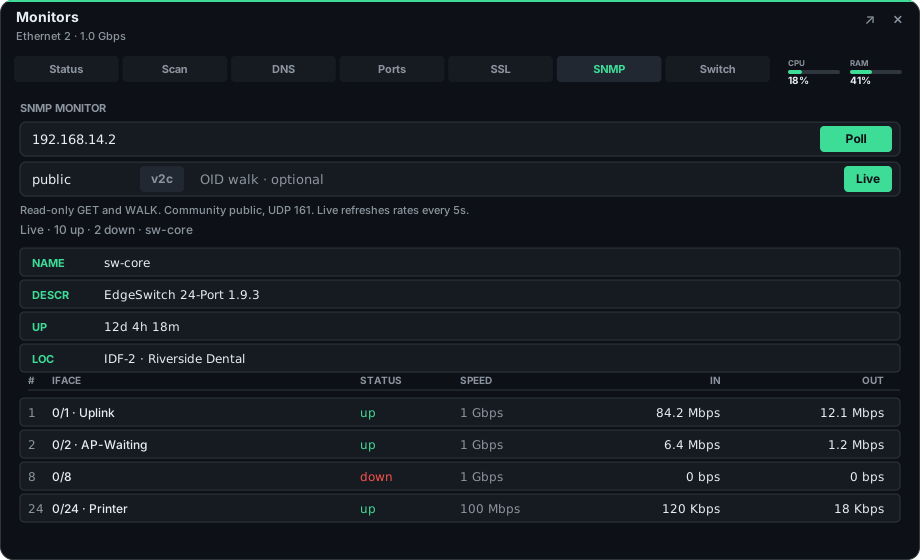
Poll SNMPv1 or v2c for sysName, uptime and every interface — status, speed and traffic. Turn on Live to refresh rates every few seconds, or walk a custom OID. Start it from Scan or Watch when you already have the address.
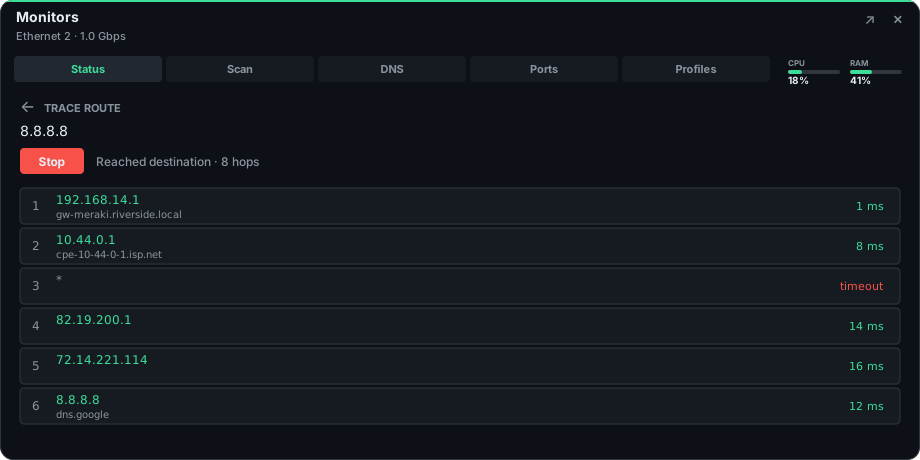
Trace the route from your laptop to any host. See each hop, IP address, RTT and reverse DNS name, with timeouts clearly marked. Start a traceroute directly from Watch or Scan when you’re already investigating a host.
Save named hosts by customer and reload them into Watch when you return. Arrive, plug in, load the site — the devices that matter are already there.
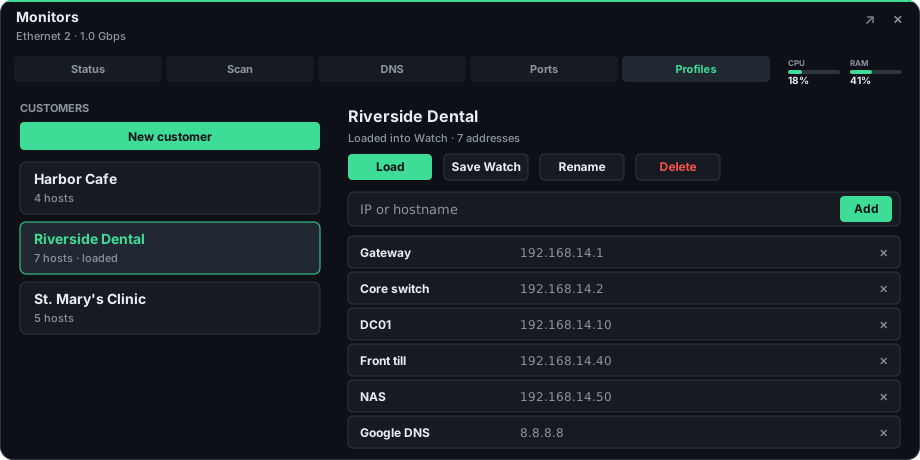
The engineer arrives, plugs the laptop in, and loads Riverside Dental. Gateway, core switch, domain controller, till and NAS are already on Watch.
NetBench opens on the workspace list. Load a customer and their monitors come back, along with the DNS lookups, port checks, SSL results, scan, SNMP poll and switch map you saved. Changes save as you work. Share or back up one workspace, or back up all of them, and restore that file on another PC.
Use on up to 3 PCs
How scan, DNS, SNMP, offline use and licensing actually behave.
Yes. Download NetBench and use the full app for 7 days on that PC. No account or card is required. When the trial ends, paste a license key from a yearly subscription to keep going.
Scan uses ICMP echo and ARP, then adds vendor information from the OUI and hostnames from DNS. Port checks use TCP connect against a small set of common ports, or a port you specify. SNMP is a separate read-only tool: GET and WALK over v1 or v2c, never SET, and never a promiscuous packet capture or an Nmap-style full TCP sweep.
NetBench opens a TLS connection and reads the certificate the server presents: name, issuer, subject alternative names and expiry. It warns when a certificate is expired or inside 30 days of expiry, when the name does not match, or when Windows does not trust the chain. Revocation is not checked, so the result still comes back on a LAN with no path to the internet.
No. NetBench sends one ICMP echo to each usable address in the prefix you scan — the active LAN, or a CIDR you enter. Large prefixes are capped so plugging into a /16 does not result in a 65,000-host sweep from your laptop.
A workspace is one customer visit. It keeps the named monitors on Watch and the checks you have already run: DNS lookups, port scans, SSL certificates, the last LAN scan, SNMP poll and switch map. Saved DNS, port and SSL results stay collapsed until you expand them. Changes save as you work. Close workspace returns to the list. Share sends that one workspace through Windows, and Backup writes it to a file another PC can restore.
The Windows DNS client and the resolvers configured on this machine. That means you are testing what the PC on this network actually resolves, rather than querying a public resolver through a website.
Yes. The LAN troubleshooting tools do not require internet access. During the 7-day trial, and after a successful license check, NetBench continues working offline, including a short grace period if the license server cannot be reached. After the trial, a current subscription is required.
NetBench continues working until the end of the period you have already paid for. After that, the app returns to the license screen until the subscription is renewed or another valid key is entered.
Up to 3 PCs per subscription. Paste the same key on each machine. If all 3 seats are taken, the new PC lists the active machines so you can pick which one to deactivate. That copy stops at its next check.
Install NetBench on the new PC and paste your existing key. If a seat is free, it activates immediately. If all 3 seats are in use, choose which PC to deactivate — the old copy loses access at its next license check.
Payment is handled by Stripe. Card details do not pass through Swifty Software servers. We keep the information needed to manage your subscription and license, including your email, Stripe subscription details, license key and the machines currently using the seats.
That is expected. The installer is not code-signed yet, so Microsoft Defender SmartScreen may show Unknown publisher. Choose Run anyway. Only do that if you downloaded it from this site.
The confirmation page includes the Windows download and your license details, and we send the same information by email. If the email does not arrive, use Already subscribed at the top of this page to recover your purchase.